

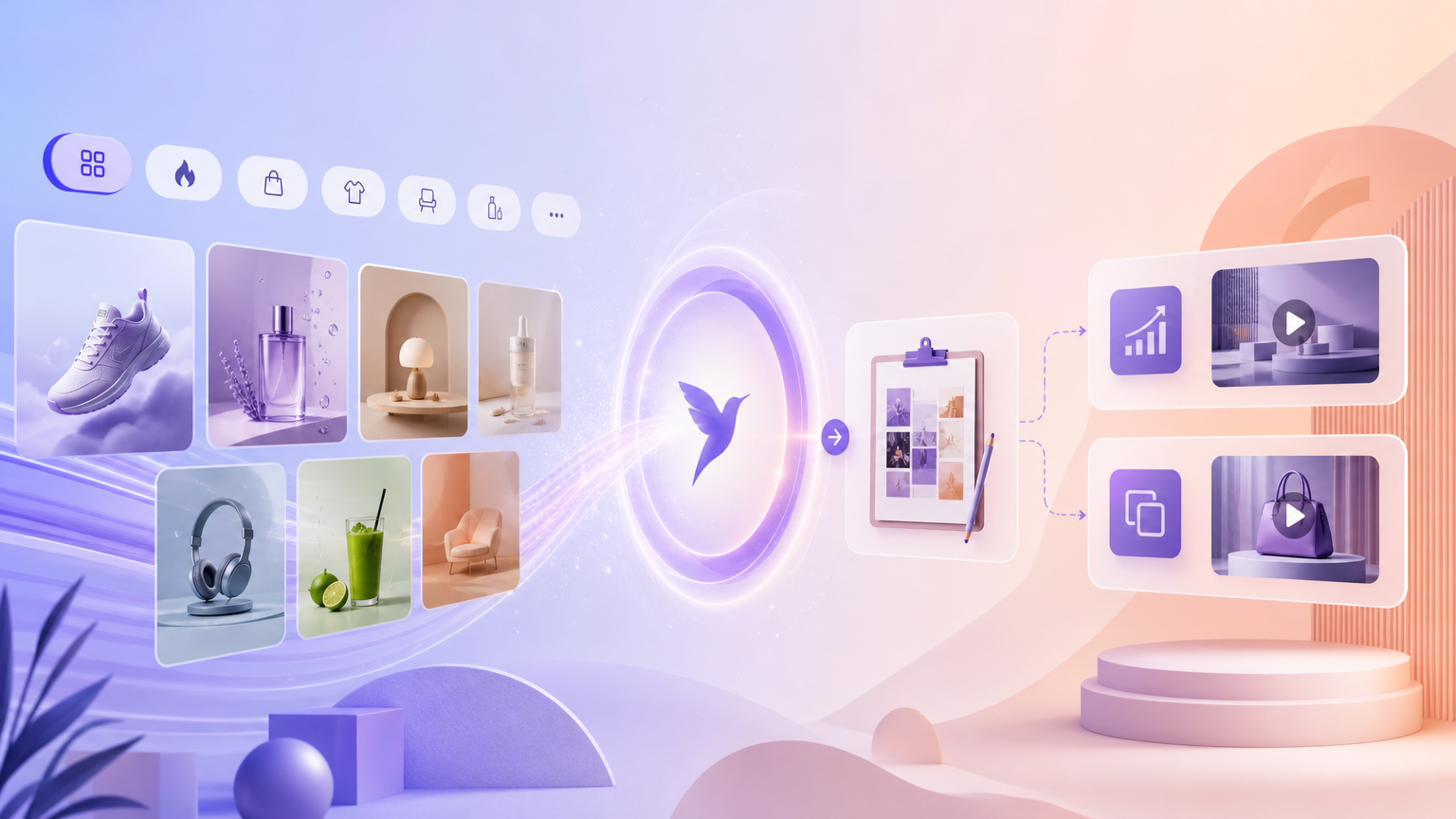
When you need fresh ad angles without staring at a blank brief, Rhinobird’s Inspiration case library gives you real creative patterns to study—hooks, pacing, product framing, and category-specific layouts. This guide shows how to open Inspiration in AI Assistant, use the sidebar filters, and translate what you see into your own compliant assets on generation tools. You are not looking for a menu called “Creative library”; on the English UI the entry is Inspiration with a browsable case library.
Open Inspiration in AI Assistant
Start from the main workspace: open AI Assistant and enable the Inspiration view so the case library appears (the URL may include an inspiration query flag). The layout pairs chat with a sidebar of cases you can scroll while you plan a campaign. Keep History in mind for anything you generate later—Inspiration itself is for discovery, not final export.
If you land on AI Assistant without the sidebar, use the product control that toggles Inspiration (wording matches the international English UI). Once visible, you should see filter chips at the top of the case list rather than a separate standalone “library” app.
Understand the case library filters
The sidebar organizes examples so you can narrow quickly:
- All — full feed when you want breadth or mood boards across categories.
- Hot — trending or high-engagement-style examples when you need proven patterns (still adapt them to your brand).
- Category chips — vertical filters such as Natural, Skincare, and related merchandising lanes shown on the English UI. Pick the lane closest to your SKU so pacing and claims feel native to the shelf.
Tap a case to preview structure: opening seconds, product hero timing, text density, and whether the ad leans UGC, demo, or offer-led. Take notes in your own doc or in Creative Requirements fields on video tools—you are extracting principles, not downloading someone else’s finished ad as your upload.
Turn inspiration into an actionable brief
For each case you like, write three bullets before you generate anything:
- Hook pattern — question, pain point, unboxing beat, or social proof line you will rewrite in your voice.
- Visual beat sheet — when the product appears full-frame, close-up, or in hand; match this to photos you actually own.
- Format — vertical 9:16 feed vs square vs landscape; align with where you will publish.
Then move to execution tools. For narrative-led product videos from one photo, open Trending Videos. For motion matched to a reference clip, open Video Clone on the tab next to Trending Videos. For still refreshes, use Image Editor via AI Assistant with the image edit skill. Inspiration does not replace those uploads—it informs what you ask for.
Workflow tips that stay people-first
Browse Inspiration when your team argues about “what good looks like” for a category. Compare two cases side by side by switching filters: note which hook feels authentic for your price tier. Avoid copying on-screen text, logos, or talent likeness from cases; treat them as compositional references only. If legal or brand teams need checks, read Help Center guidance on copyright and authorization before you publish.
When a case shows a duration or rhythm you want, mirror that intent with Video Duration and Model choices on Trending Videos rather than assuming the case file is reusable media. Credits apply when you press Generate; the case library itself is for learning.
Failure states and boundaries
- Empty or slow sidebar — refresh the page, confirm you are on Inspiration view, and try a broader filter such as All before a narrow category.
- Case does not match your SKU — switch category chips or use Hot for format ideas only, then rewrite all copy for your product.
- Generate blocked later — Inspiration does not fill required uploads; you still need your product image (and reference video on Video Clone) plus Category and format fields on the tool page.
- Login prompt on Generate — complete Login / Sign up, then retry on the same tool without losing your brief notes.
Used well, Inspiration and the case library shorten the “what should we try?” phase: you leave with a concrete hook and layout plan, your own assets on the upload controls, and a generation path that matches the format you saw in the feed.