

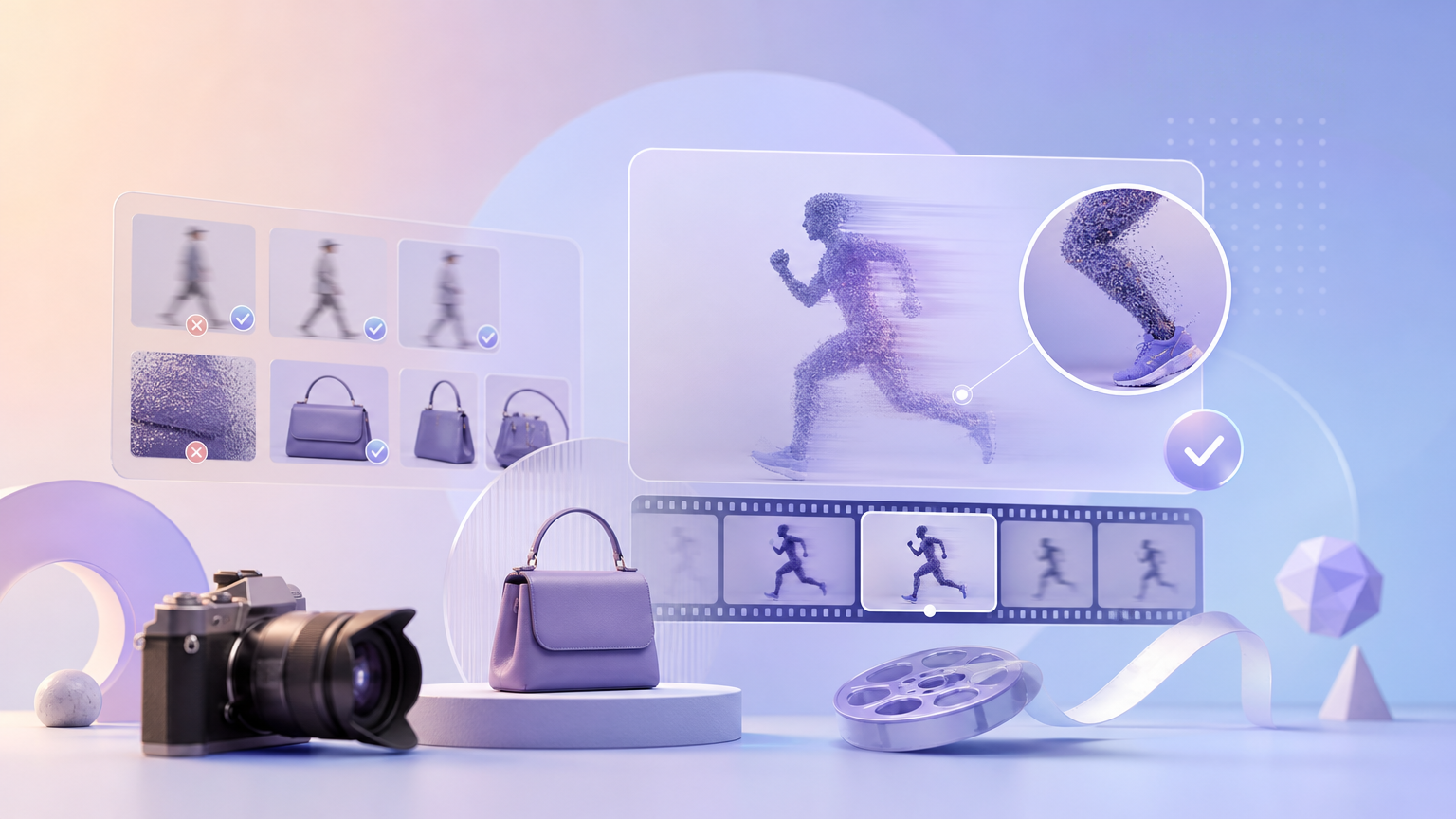
Video ads need believable human motion and stable product geometry. When Rhinobird output shows wobbly hands, sliding labels, or jittery camera moves, the fix is usually better inputs and settings—not accepting the first batch. Generative video trades perfection for speed; your job is to steer models with clean references, explicit Creative Requirements, and disciplined regeneration after preview in History. This guide targets unnatural people, motion, and product detail issues on the English UI.
Diagnose what looks wrong
- People and motion — Extra fingers, stiff walking, or face drift often trace to reference clips or duration too aggressive for the model.
- Product details — Smeared logos or changing package color usually trace to low-resolution product photos or brief text that contradicts the image.
- Camera and pacing — Sudden zooms or strobe-like cuts may come from reference editing style incompatible with your selected model.
Play the full preview in History before download. Thumbnails hide motion defects that ad platforms will reject after you already shipped the file.
Strengthen the product layer
Upload a hero product image where the label faces the camera and occupies a meaningful share of the frame. If the source is soft, run AI upscale and re-upload the exported JPG or PNG. Remove busy backgrounds with AI matting so the model does not confuse packaging edges with scenery. In Creative Requirements, state the exact product name and forbidden alternate colors so the render does not invent variants.
Tune Video Clone references
On Video Clone, motion inherits from your reference video within limits set by the Seedance model you pick. Trim references to the allowed duration for that model. Prefer stable exposure, minimal motion blur, and single-subject framing. Over-compressed social clips or rapid dance moves often produce uncanny results even when upload succeeds. If motion still fails, try a calmer reference or a shorter proof duration before spending credits on a long final render.
Adjust model, duration, and aspect ratio
Longer durations give the model more time to drift. Run a short proof with the same brief and compare History entries. Change aspect ratio only when the placement channel requires it—forced crops can shrink product legibility. Re-read credit cost on Generate after each settings change; heavier models may improve coherence at higher cost.
Regenerate with tighter creative control
- Document what failed in the last preview (hands, label, pacing).
- Update Creative Requirements with concrete fixes (“slow walk”, “hold product at chest height”, “no extra props”).
- Replace or trim reference media if people motion was wrong.
- Generate one proof; preview fully in History.
- Scale to full duration only after motion and product details look acceptable.
Know when output is “good enough” vs broken
Minor imperfection may be acceptable for social tests; marketplace hero videos may need stricter thresholds. Completed jobs with unnatural but delivered video generally follow normal credit rules—dissatisfaction alone is not the same as system failure. Failed jobs with no deliverable may qualify for returns under membership rules; check credit transaction details alongside History status.
Get help when issues persist
If the same product photo and brief produce severe artifacts across proofs, contact support at 13378452864 or support@rhinobird.ai with timestamps and screenshots. Ensure you are signed in via Login / Sign up so support can locate runs. Policy context lives in Service Agreement and About Us.
Unnatural motion is a signal to improve references and briefs, then regenerate with shorter proofs. History preview is your quality gate before any download reaches customers.