

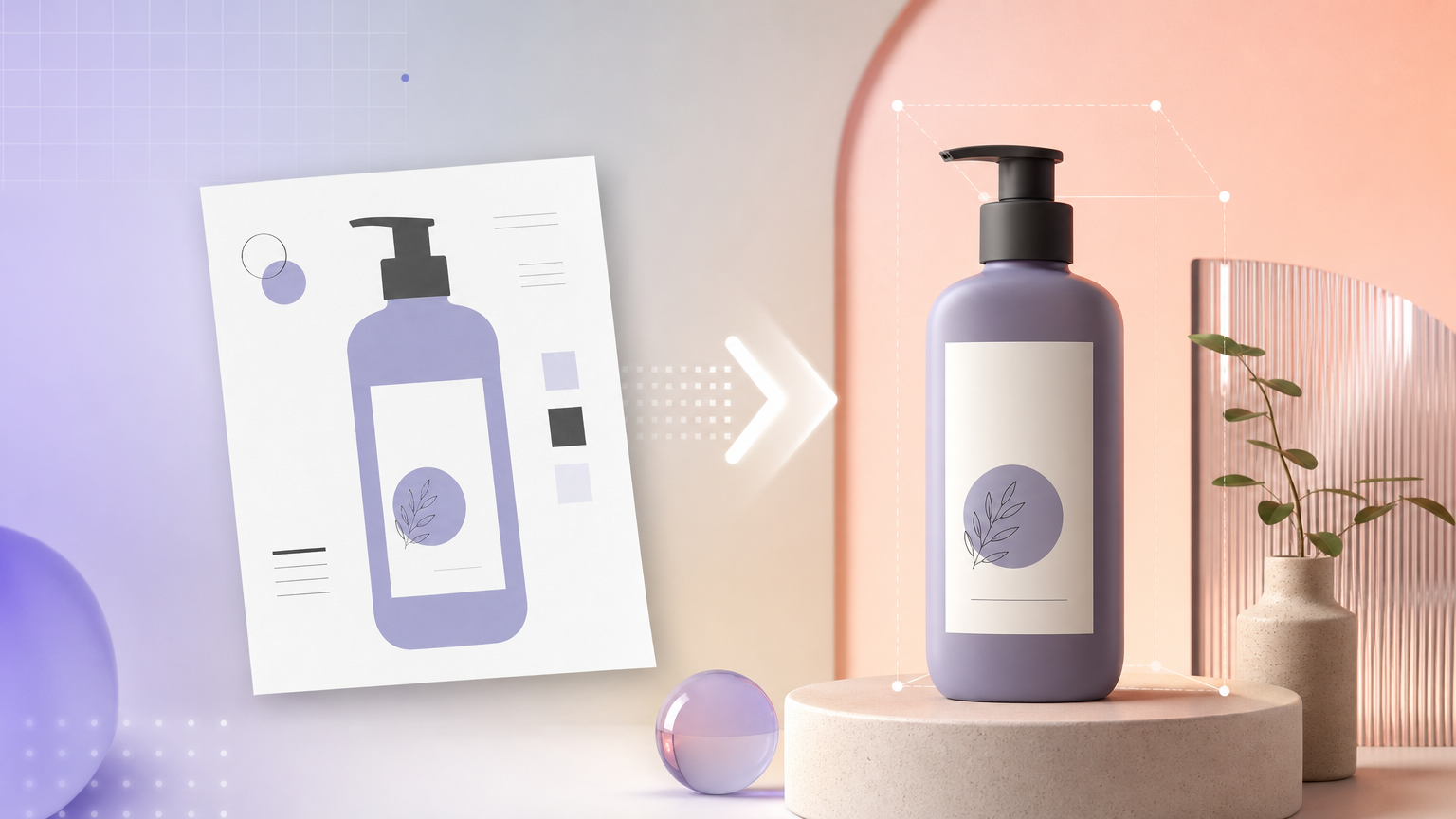
Design teams often approve flat packaging layouts or vector boards long before photography exists. Merchandisers still need render-like product visuals for internal reviews, investor decks, and early marketplace drafts. Rhinobird’s AI 2D Layout to Rendering tool interprets uploaded layout art and produces a more photographic product image. This walkthrough covers upload standards, Category selection, Generate, and how to fold outputs into PDP and ad pipelines.
Open AI 2D Layout to Rendering
From AI Tools, open AI 2D Layout to Rendering. The workspace expects a required Upload Image of your 2D source plus merchandising context. Note Generate credit display and Login / Sign up requirements before you start.
Prepare layout files that translate cleanly
Strong inputs show distinct faces, accurate proportions, and readable branding zones:
- Export flat art at high resolution with minimal compression artifacts.
- Include cut lines or face boundaries when the layout is a dieline so the model understands panel relationships.
- Keep text outlines sharp; blurry embedded logos propagate into render gibberish.
- Align color profiles as closely as possible to brand specs—renders inherit hue from the board.
Photographic reference boards mixed with flat art can help when the layout alone lacks depth cues; attach the clearest single composite the tool accepts in one upload.
Set Category and contextual fields
Choose Category that reflects material expectations—cosmetic bottle versus folding carton versus appliance housing. Specific categories steer lighting and surface shaders better than generic “consumer goods” labels.
Add naming or description text if the form exposes optional merchandising fields, especially when the layout art uses internal codenames shoppers would not recognize. Consistent naming helps when you later search History for the render pass.
Generate and evaluate the render
Upload under Upload Image, review credits, and press Generate. Sign in if prompted. When processing completes, download from History and evaluate:
- Panel alignment versus the approved dieline.
- Material believability (glass, matte plastic, foil stamp) for your category.
- Typography fidelity on regulatory blocks—never publish renders that invent claims.
Early renders are proof-of-visual, not always final marketplace assets. Plan a refinement loop.
Refine and expand into PDP assets
Polish the render chain with complementary tools:
- Image Enhancement if export resolution is low for zoom-heavy PDP modules.
- Image Editor for localized label or highlight fixes.
- AI E-commerce Image Sets to build showcase, USP, and lifestyle frames from the render as if it were a photo.
- AI E-commerce PDP when you need full module coverage (hero, specifications, usage guides) before photography exists.
Governance before customer-facing use
Renders for internal alignment differ from customer-facing claims. Verify copy on the layout matches legal-approved text after AI interpretation. Replace AI renders with photography when SKUs go live if your marketplace policy requires actual product photos.
Failure states
- Warped panels — re-export layout with clearer face separation or higher resolution.
- Wrong material look — change Category to a closer match and regenerate.
- Generate disabled — confirm upload present and required fields filled.
- Unreadable microtext — simplify layout export or fix in Image Editor before upscaling.
AI 2D Layout to Rendering bridges design approvals and commerce creative when uploads are crisp, categories are specific, and teams treat first outputs as inputs to enhancement, sets, and PDP modules—not as unreviewed final listing photos.