

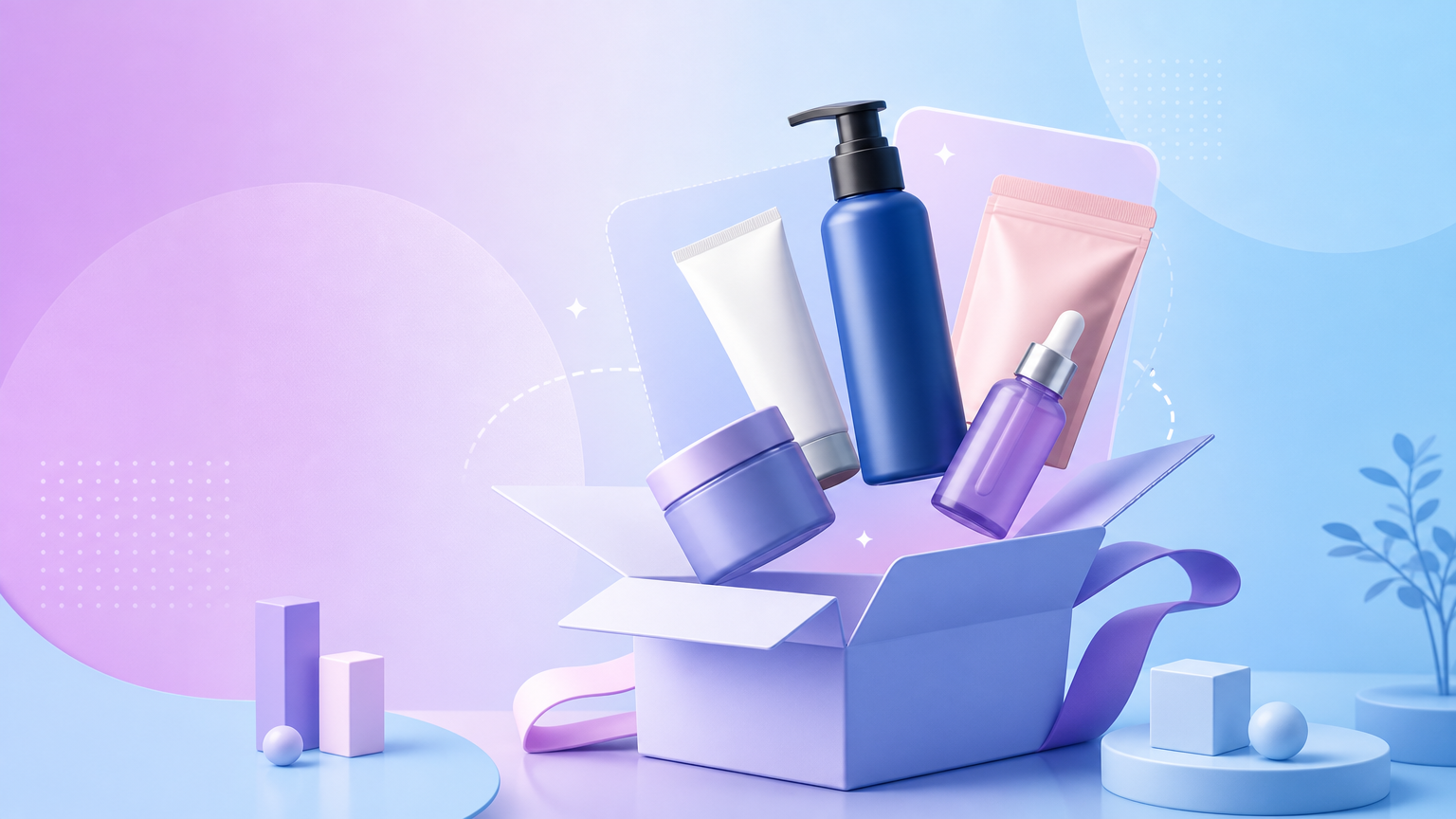
Promotional bundles—gift sets, starter kits, “buy together” offers—need layouts that show every included SKU without crowding labels or misstating contents. Rhinobird addresses multi-item ad art through the Bundle Ad Creative skill in Agent Chat. This article explains how to open the skill, attach multiple product references, brief offer mechanics, and download finished composites from History.
Open Bundle Ad Creative
Navigate to Bundle Ad Creative. The chat session should display the skill name Bundle Ad Creative so you know bundle-specific controls are active. Generic Agent Chat without the skill loaded may not understand combo layout intent—reopen the skill URL if prompts behave like a general assistant.
Prepare references for every included SKU
For each item in the bundle, gather a clear product photo. Run noisy shots through AI Background Removal when backgrounds compete for attention. Name files or captions in chat the way merchandisers name line items (“Serum 30ml”, “Cleanser 100ml”) so generated layouts respect relative scale.
List the official bundle contents in text—counts, sizes, shades included, and any item that is bonus versus core. Models otherwise invent extra products or omit shades, which creates compliance risk on regulated categories.
Brief the offer, not just the aesthetics
Include commercial context the creative must communicate:
- Bundle title or promo name as it appears in ads manager.
- Price framing if on-image text should mention savings (subject to your legal approval).
- Placement aspect hints—square feed, vertical story, horizontal display.
- Mandatory badges (“Limited time”, “Online exclusive”) only if policy allows.
Separate aesthetic direction (“soft pastel gradient”, “retail shelf arrangement”) from factual inventory lists so reviewers can approve copy independently from art direction.
Generate via the skill button
After attachments and brief are sent, use the skill action control that shows credit cost. Complete Login / Sign up if interrupted. Wait for rendering, then validate that every attached SKU appears with recognizable packaging and that no phantom products entered the frame.
Pull downloads from History. If one item renders too small, ask for a layout revision that emphasizes hero SKU size while keeping secondary items legible.
Quality checklist for combo ads
- Contents accuracy — count and variant match the live bundle PDP.
- Label readability — no overlapping text blocks hiding ingredients or warnings.
- Hierarchy — hero driver SKU draws the eye first if the promo says so in the brief.
- Localization — on-image language matches the ad account locale.
When to use other tools instead
Single-SKU carousel batches still belong in AI E-commerce Image Sets. Full long-form bundle storytelling on a PDP may use AI E-commerce PDP for module sections, then promote the bundle hero via Bundle Ad Creative. Human-model bundles can combine Model Handheld references with bundle layout prompts here.
Failure states
- Missing SKU in output — reattach that reference and restate its role in the bundle list.
- Duplicate items — clarify quantities in the brief (“include exactly two minis”).
- Credit surprise — read the skill button before rerunning large layout iterations.
- Wrong aspect — specify crop target before regenerating entire compositions.
Bundle Ad Creative is the dedicated Agent Chat path for multi-SKU promo art when your inputs enumerate real contents, attach per-item references, and validate downloads against the live offer before launch.