

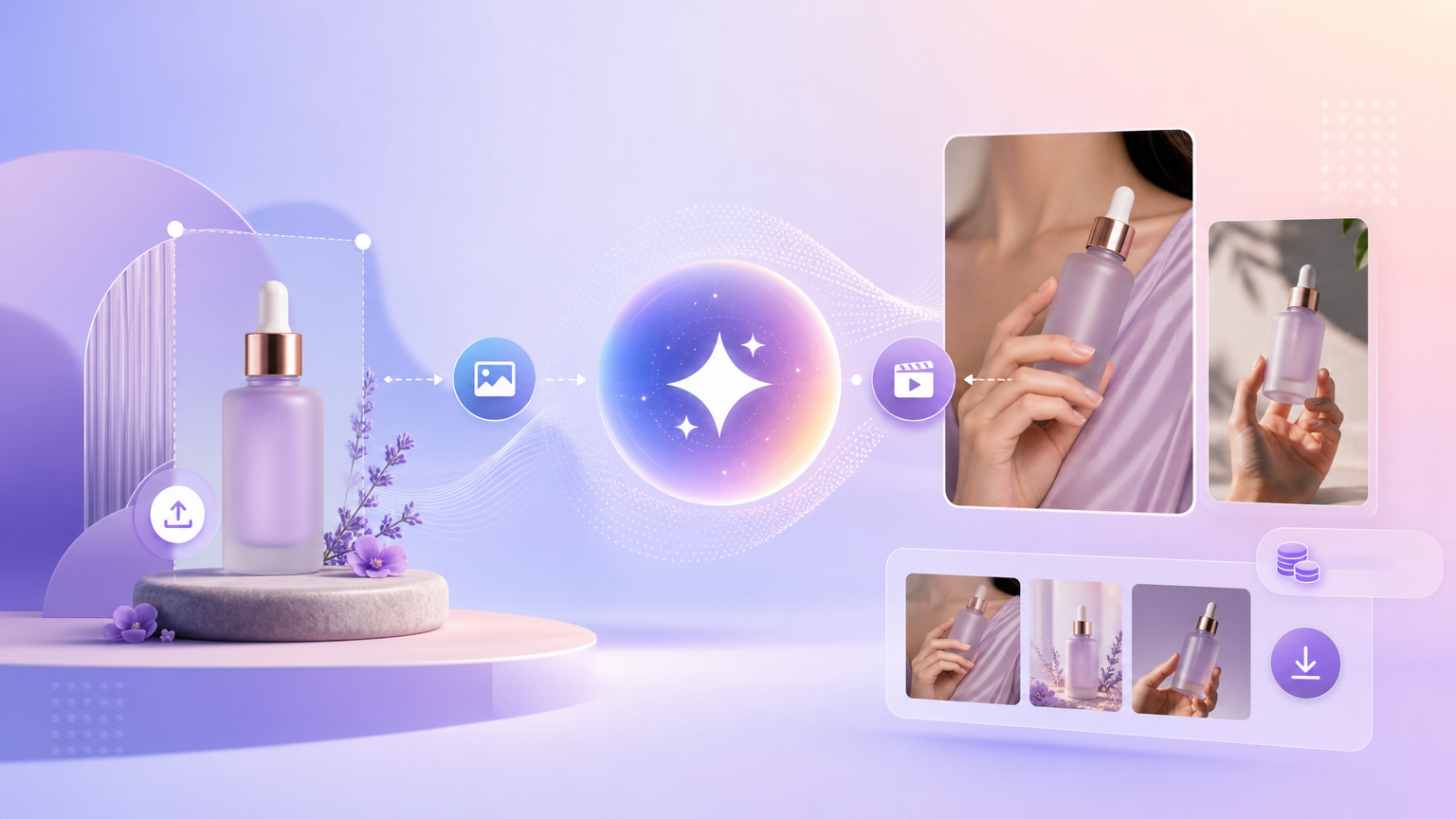
Hand-model and “product in use” creatives convert well on social feeds because they show scale, grip, and packaging legibility in one glance. Rhinobird exposes this workflow as the Model Handheld skill inside Agent Chat—not as a standalone toolbox tile that redirects elsewhere. This guide covers how to open the skill, choose image versus video output, respect credit display on the skill button, and pull finished ads from History.
Open Model Handheld the correct way
Launch Model Handheld from Agent Chat using the skill parameter on the chat URL. Avoid bookmarking legacy /ai-tools/model_hold paths that redirect back to the general hub; the supported entry is the Agent Chat skill link with visible name Model Handheld.
The chat header should show the skill name and mode controls. If you land on a generic assistant without the skill badge, re-open the link above or pick Model Handheld from the skill picker if your workspace exposes it.
Prepare product reference assets
Upload or attach a clear product image the model should hold. Prefer photos where label text is readable and edges are not clipped. If your source file has a busy background, consider a quick pass through AI Background Removal so the skill focuses on the SKU silhouette.
Write a short brief in chat: target audience, hand styling ( manicured retail versus casual UGC ), wardrobe cues, and any must-not-show regions ( competitor logos, regulated claims ). Concrete direction beats vague “make it viral” prompts.
Choose Image or Video
Model Handheld exposes Image and Video output types. Pick stills when you need rapid carousel variants or static Meta placements. Pick video when the placement requires motion—Stories, Reels, or short in-feed clips.
Video runs typically cost more credits and take longer; confirm the skill button credit display before you commit. If budget is tight, lock composition in an image pass first, then promote the best angle to a video follow-up.
Run the skill and sign in
Press the skill action button (labeled with the skill name and credit cost). If you are signed out, complete Login / Sign up via Continue with Google or Continue with Email, then retry without losing your upload. Do not navigate away mid-run unless you intend to abandon the session.
Wait for the skill to finish rendering. Preview in-chat if offered, then open History for authoritative downloads and reruns.
Quality checks before ads upload
- Product identity — packaging color, logo placement, and proportions match the source photo.
- Hand interaction — fingers do not obscure mandatory label claims your legal team requires visible.
- Crop and safe zones — for video, confirm UI-safe margins for platform overlays.
- Policy — beauty and supplement categories may restrict before/after implications; align chat briefs with your ad policy.
Combine with related skills
After you approve a handheld hero, swap backgrounds without reshooting using Background Generation, or polish details with Image Editor natural-language edits. For multi-SKU promotions, see Bundle Ad Creative.
Failure states
- Redirect to hub — reopen Model Handheld via Agent Chat skill URL.
- Wrong product shape — upload a higher-quality reference or matting-cleaned cutout.
- Credit error — read the skill button cost; reduce video duration or switch to Image mode for tests.
- Missing output — check History before regenerating to avoid duplicate charges.
Model Handheld is the fastest path from a packshot to credible “in hand” social proof when you enter through Agent Chat, choose the right modality, and validate product fidelity before spending on paid distribution.