

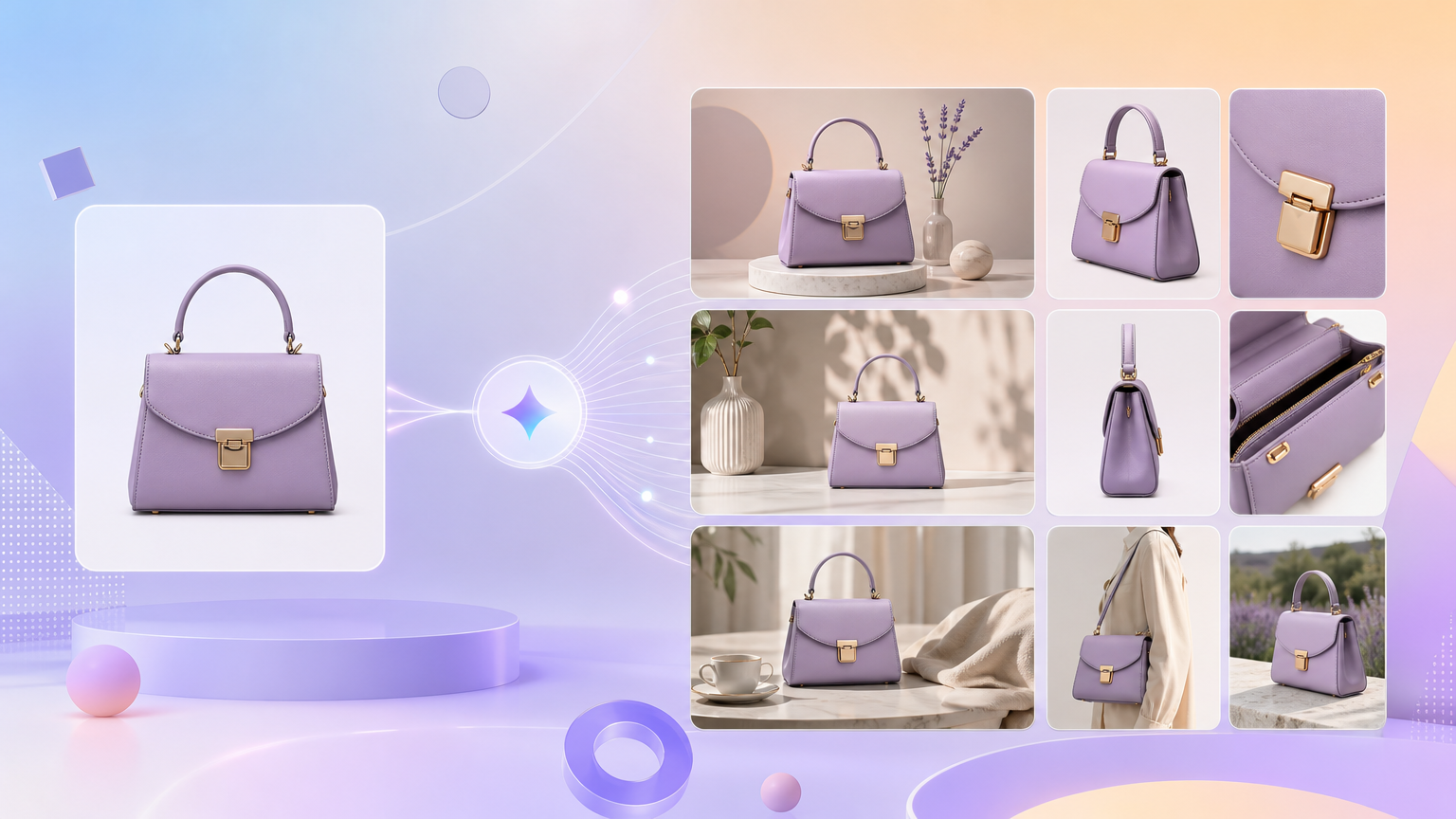
Marketplace carousels and ad creative often need the same SKU shown three ways: a clean product showcase, a benefit-led USP frame, and a lifestyle moment that answers “who is this for?” Rhinobird bundles those still types in one workflow via AI E-commerce Image Sets. This article explains how to upload one product photo, set Image Type counts, use AI Writing Assistant for copy-aware frames, and retrieve results from History.
Open AI E-commerce Image Sets
Navigate from AI Tools to AI E-commerce Image Sets. The workspace is optimized for batch stills rather than a full long-form PDP layout. Note Login / Sign up if you are signed out, and locate History in the sidebar or header for the post-generation step.
Upload Product Image and Category
Add your hero SKU under Product Image, marked required. Without it, Generate stays blocked. Pair the photo with required Category—choose the label that matches how you merchandise the item so scene templates and copy tone fit shopper expectations.
Optional but valuable fields typically include Product Name and Description. Put verified specs and claims in Description before you lean on generated headlines; models treat vague copy as permission to invent details.
Configure Image Type counts
The Image Type area exposes separate count controls for multi-scene output. On the English UI you can allocate frames across:
- Product Showcase — studio-style or clean presentation of the SKU.
- Key Selling Points (USP) — benefit and feature callouts for ads and carousel slides.
- Lifestyle & Usage — contextual scenes showing the product in use.
Decide counts before you spend credits. A learning run might use several showcase frames for carousel coverage, one or two USP images for A/B tests, and a modest lifestyle count if your listing lacks real-world photos. Raising lifestyle counts before the hero look is stable often wastes credits on scenes that do not match packaging color.
Use AI Writing Assistant on copy fields
When AI Writing Assistant is available next to description or merchandising text, use it to expand structured bullets into fluent marketing language. Feed measurable benefits—capacity, compatibility, SPF level, battery life—rather than empty superlatives. The assistant helps on-image copy align with your facts; it does not replace legal review for regulated categories.
Generate, review, and iterate
Review the credit indicator on Generate, then press the button when required inputs are complete. Complete Login / Sign up if prompted, and run Generate again on the same page. After processing, open History, preview each scene type, and download files for your listing or ads manager.
If showcase frames are strong but USP text misses the claim, tighten Description and regenerate with adjusted USP counts rather than editing every overlay externally. If lifestyle scenes feel generic, make Category more specific or reduce lifestyle counts until showcase identity is locked.
When to pair with other image tools
Image sets focus on multi-scene still batches from one photo. If you need a full PDP module layout (hero plus specifications, ingredient spotlights, usage guides in one form), use AI E-commerce PDP instead or after your carousel batch. For cutouts before upload, run AI Background Removal on noisy backgrounds, then return to the set tool with a cleaner subject.
Failure states
- Generate grayed out — missing Product Image or Category.
- Inconsistent product color — improve source lighting; avoid mixed color casts in the upload.
- Wrong scene mix — rebalance Image Type counts instead of downloading unused frames.
- Sign-in loop — finish login, stay on the tool URL, retry Generate.
Done well, one Generate pass yields a matched trio of showcase, USP, and lifestyle stills tied to the same product photo—enough variety for carousels and prospecting ads without managing three separate manual shoots.